Beat Cards
A Beat Card is a span of time in your story. In a screenplay, we recommend treating them like scenes. In a novel, they can represent chapters or even just important moments. In the Draft Workspace, you can order them by stacks and group them using Structure Cards. In the Shape Workspace, you can position them along emotional Arcs.
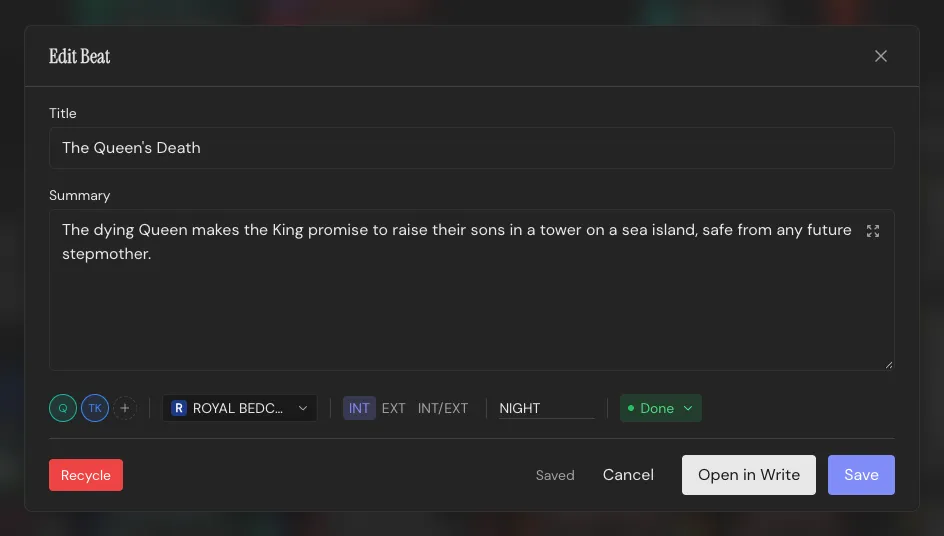
What’s on a Beat
Section titled “What’s on a Beat”A single Beat holds:
- Title
- Summary: a short single or multi-line text which is shown on the card.
- Content: the full text of your story, which can be seen and edited in the Write Workspace.
- INT/EXT and time of day, for scene-heading purposes
- Status: Draft, Done, or Don’t Print
Mark a Beat as “Don’t Print” and it’s skipped by most exports, without you having to delete it. Good for a scene that’s still too rough, or that you’re not sure survives the cut but aren’t ready to lose yet.
Beyond that, each Beat can be associated with:
- Characters: multiple Characters, shown as round chips
- Setting: one Setting, its colored “sleeve”
Casting a Beat
Section titled “Casting a Beat”Characters and Settings live in their own rows above the Throughline in the Draft Workspace. Drag a Character Card or chip down onto a Beat and they’re associated with it; drag a Setting Card and it becomes the Beat’s Setting, visible as its colored sleeve. You can also manually enter Character names and Settings in the Beat dialog, or in the Beat’s top bar in the Write Workspace.
See Characters and Settings for what those cards hold.
Stacking
Section titled “Stacking”Drop a Beat directly onto another Beat, or onto a Structure Card, and it stacks. Stacks can be expanded and collapsed with the control on the left of the Throughline in the Draft Workspace.
See Structure Decks for the template side of that relationship, and Draft for the full board.